Activate emergency roll call
Follow the steps below to activate and terminate the Emergency Roll Call feature during and after an actual emergency.
Who appears on the roll call
The roll call list is built when you start the roll call. It includes everyone with a presence recorded at the selected place on the current day, based on the place's time zone. People who haven't been at the place that day aren't included.
Before you start, the New Roll Call tab previews the people currently on-site, with an On-Site status.
The list is fixed once the roll call starts. Badge-ins from people who aren't on the list aren't added.
Initiate Emergency Roll Call
- Navigate to Integrations and select the Emergency Roll Call integration that has been created
- Click Initiate Roll Call
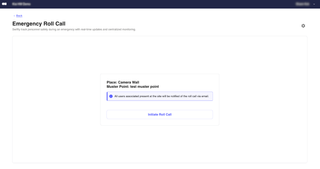
Everyone on the list starts as Pending.
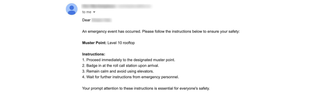
If Send Notifications is enabled in the roll call settings, everyone on the roll call list receives an email with the muster point and emergency instructions. The subject line is "Emergency Roll Call" followed by the date and time. On large sites, sending is spread over about 5 minutes, so some people may receive the email a few minutes later.
Mark people present
People are marked Present in two ways:
- Badge-in: when someone on the list badges in at the configured roll call access point during an active roll call, they're marked Present and the time is recorded in the place's time zone.
- Manually: for people who can't badge in at the roll call station, click Mark Present. The date and time of this action is recorded.
Mark Present is available only while the roll call is active. A person marked Present can't be set back to Pending.
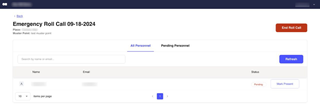
The list doesn't update automatically. Click Refresh to see the latest statuses. You can monitor user status by switching between the All Personnel and Pending Personnel tabs.
Terminate Emergency Roll Call
Follow the steps below to conclude the Emergency Roll Call and finalize the tracking process.
- On the Emergency Roll Call page, click End Roll Call
- To receive a report (CSV file) of the roll call, click Export. The export includes only the people in the selected tab. With Pending Personnel selected, the CSV contains only pending people and its file name ends in
_Pending. - Click Reset Roll Call to return to the main page
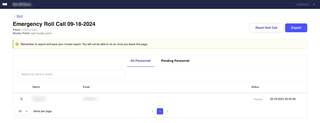
The CSV has the columns User, Email, Status and Timestamp.
Review past roll calls
- Open the Past Roll Call tab
- Under Select Roll Call, choose a roll call. Each one is named after the place, date and time.
- Review who was present and who was pending
- Click Export to download the CSV report
Troubleshooting
| Error | Meaning and resolution |
|---|---|
| Invalid terminal for this installation | The access point wasn't configured for the app, or it doesn't belong to the selected place. Open Roll Call Settings, check the place and access point, and click Configure Access Point if it's shown. |
| Someone badged in but still shows Pending | Click Refresh. If the status still doesn't change, check that they badged in at the configured roll call access point and that they're on the roll call list. |
| There are no personnel. | Shown on the New Roll Call tab when no one has been recorded at the place today. |
| Failed to fetch installation – Refresh this page to try again | Reload the page. Other errors appear in a Configuration Error dialog. |
Remove the integration
Deleting the Emergency Roll Call integration permanently deletes its settings and all past roll calls. Export any reports you need before you delete it.
- Sign in to Kisi
- Click the integrations icon (3x3 grid of dots) and select your Emergency Roll Call integration
- Click Delete and confirm